Installation
Choose your operating system and how you want to use ithyno. The page keeps your choices in this browser and shows only the relevant instructions.
macOS prerequisites
- Homebrew
- Git
- Node.js 20.19.0 or later (Node.js 22 LTS recommended)
Check the tools already installed:
brew --version
git --version
node --version
If Homebrew is missing, install it from the official Homebrew site. Then install only the missing or outdated tools:
brew install git
brew install node@22
Open a new terminal and run git --version and node --version again to
confirm the commands are available.
Permissions
If macOS blocks a downloaded application, clear its extended attributes:
xattr -cr /Applications/ithyno.app
Only run this command for an ithyno application you obtained from the official release page.
Windows prerequisites
- Download Git for Windows
- Download Node.js — Node.js 20.19.0 or later; use a current LTS release for a new installation
After installation, open a new PowerShell window and verify both commands:
git --version
node --version
Run the installer when SmartScreen appears
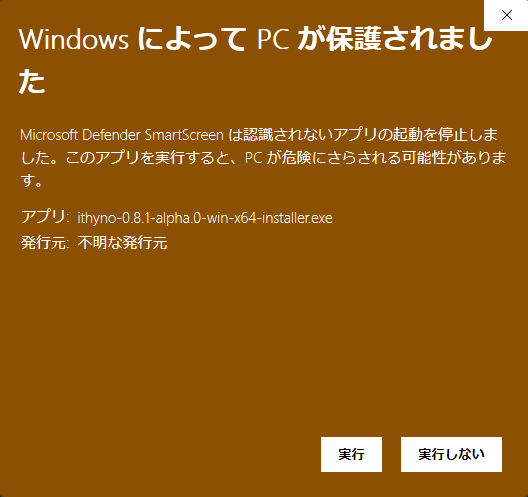
Microsoft Defender SmartScreen may stop an installer that is not yet widely recognized. Do not disable SmartScreen. First confirm that you downloaded the installer from the official ithyno Releases page, then use the one-time confirmation flow:
- Select More info on the SmartScreen message.
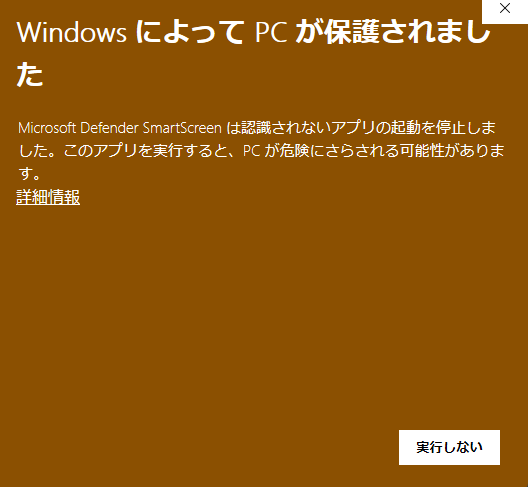
- Confirm that the application filename is the ithyno installer you downloaded, then select Run anyway. The exact labels follow the Windows display language; the screenshots show Japanese Windows.
Linux prerequisites
- Git
- Node.js 20.19.0 or later (Node.js 22 LTS recommended)
Install Git with your distribution's package manager:
sudo apt update
sudo apt install git curl
sudo dnf install git curl
sudo pacman -S git curl
For other distributions, use the official Git for Linux instructions.
Install Node.js for your user with nvm, then install a supported version that satisfies ithyno's minimum:
nvm install 22
nvm alias default 22
node --version
Permissions and packages
AppImage normally needs no system-wide installation. If startup reports a FUSE error, follow the official AppImage FUSE troubleshooting guide for your distribution rather than disabling the sandbox or system security.
Electron for macOS — Apple silicon
Download the latest Apple silicon DMG
Open the DMG and copy ithyno.app to /Applications.
Electron for macOS — Intel
Open the DMG and copy ithyno.app to /Applications.
Electron for Linux — ARM64
Download the latest ARM64 AppImage
Make the AppImage executable, then run it:
chmod +x ithyno-*-linux-arm64.AppImage
./ithyno-*-linux-arm64.AppImage
Electron for Linux — x64
Download the latest x86_64 AppImage
Make the AppImage executable, then run it:
chmod +x ithyno-*-linux-x86_64.AppImage
./ithyno-*-linux-x86_64.AppImage
VS Code extension
- Install Visual Studio Code.
- Download the latest VSIX.
- In VS Code, run Extensions: Install from VSIX… and select the file.
Version source
The Node.js minimum above follows the engines.node requirement of the
OpenSpec version pinned by ithyno. Update this page when that dependency is
upgraded.