Set Up Multiple Agents and Dispatch a Change
Ithyno uses one persistent Manager and one or more workers.
The Manager receives the dispatch command, reads agents.yaml, and delegates
each stage to a worker with the matching role.
Start / dispatch
      ↓
Manager ──→ code worker ──→ review worker ──→ verify worker
The stages are sequential for one change. Different changes can run in parallel when parallel execution is enabled.
1. Prepare every CLI
Install and authenticate every agent CLI you plan to use. Installing skill files does not install or sign in to the CLI itself.
In ithyno:
- Open Settings → Prerequisites.
- Confirm that each CLI is detected.
- Select Manage skills for each Manager and worker CLI.
- Install both OpenSpec and ithyno skills when they are supported.
Do this for the receiving worker as well as the Manager. A worker must be able to resolve the prompt it receives, such as the OpenSpec apply workflow or the ithyno review workflow.
2. Assign the roles
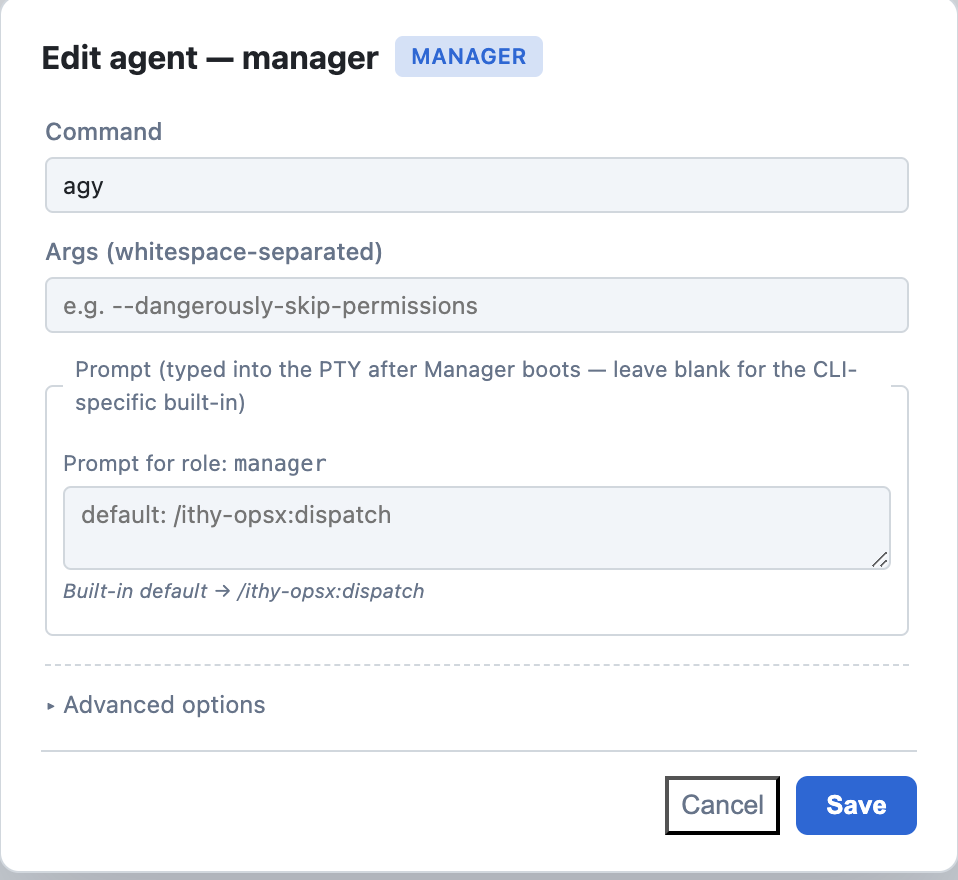
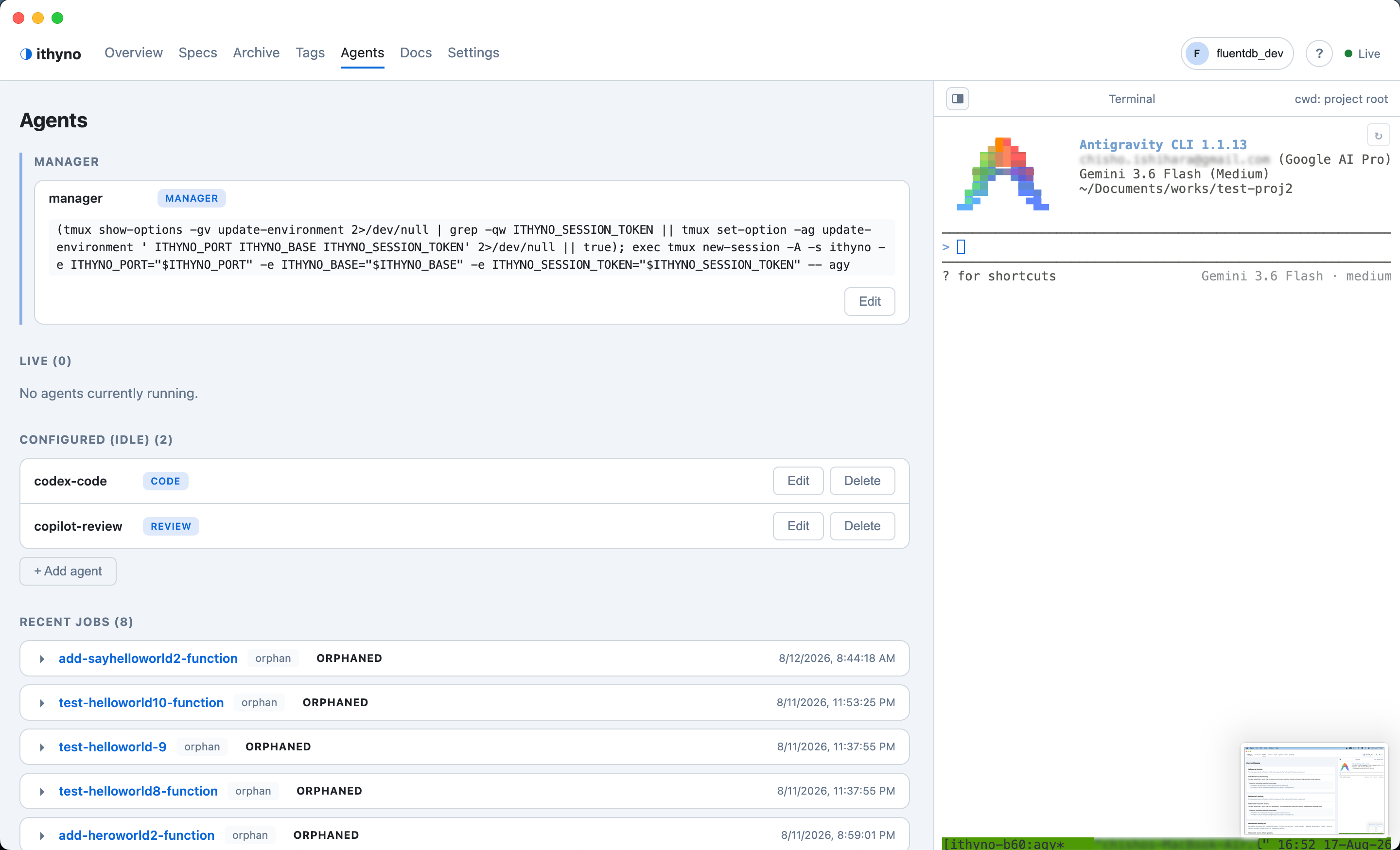
Open Agents and use + Add agent to create workers. Assign these standard roles:
| Role | Responsibility | Built-in workflow |
|---|---|---|
manager |
Orchestrates the change and delegates work | ithyno dispatch |
code |
Implements unchecked OpenSpec tasks | OpenSpec apply |
review |
Reviews the implementation and writes review.md |
ithyno review |
verify |
Runs applicable checks and writes review.md |
ithyno verify |
Set a custom prompt only when you want to override the CLI-aware built-in workflow.
Example: a different CLI for every worker stage
This example uses Claude as the Manager, Codex for implementation, Copilot for review, and Claude for verification:
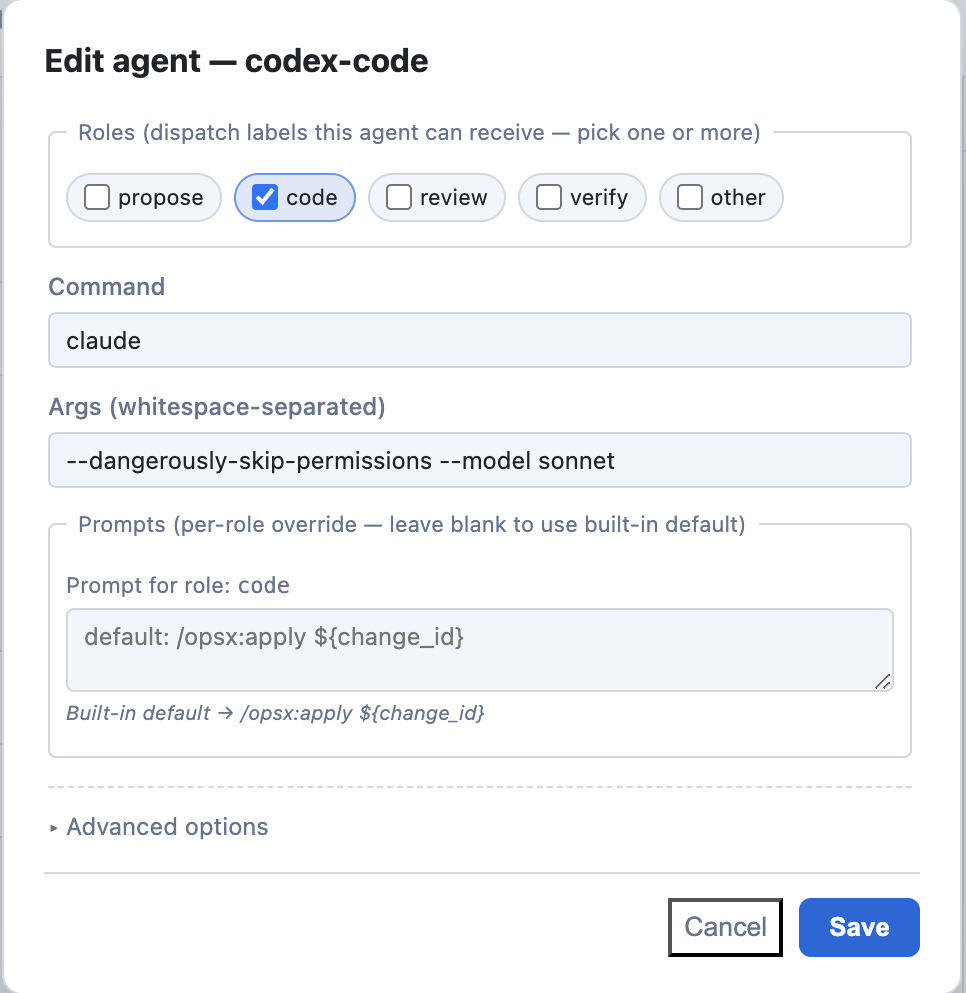
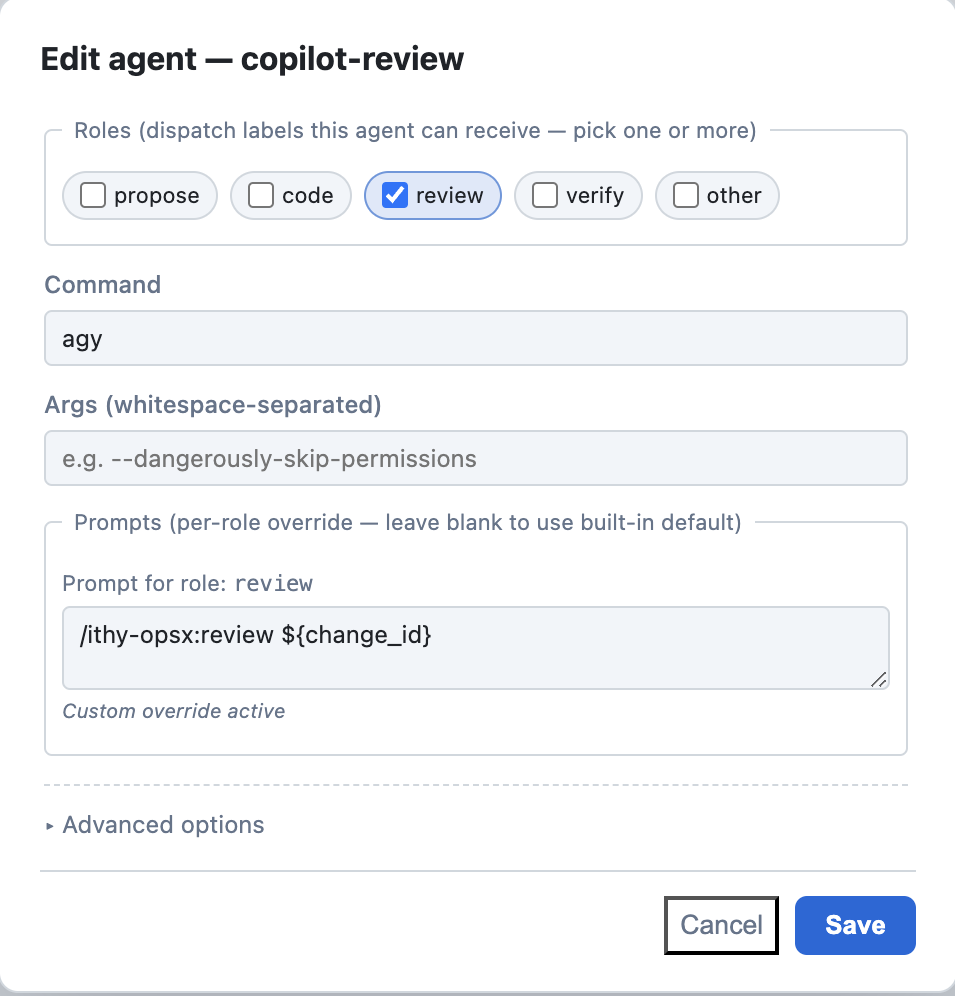
Configure these rows on the Agents screen:
| Entry | Role | Command | Args |
|---|---|---|---|
| Manager | manager |
claude |
leave empty |
| Implementation worker | code |
codex |
--dangerously-bypass-approvals-and-sandbox |
| Review worker | review |
copilot |
--yolo -s |
| Verification worker | verify |
claude |
--dangerously-skip-permissions |
The built-in prompt resolver uses the receiving CLI's syntax. For example,
Codex is launched with codex exec <prompt>, while Claude and Copilot receive
-p <prompt>. You do not need to put exec, -p, or a workflow name in this
example.
The agent name is only a label. The value in Command determines which CLI is actually launched.
Review automatic-approval flags for cross-CLI workers
The example above includes --dangerously-bypass-approvals-and-sandbox,
--yolo -s, and --dangerously-skip-permissions. These flags allow the
Worker to edit files and run commands without waiting for confirmation.
They are relevant when the Manager starts a different CLI as an independent subprocess and that CLI would otherwise wait for approval. They are not required merely to delegate from a Manager to a same-CLI child through its native Agent/Tool mechanism. For subprocess Workers, enable unattended execution only in a repository and account you trust, and replace the example flags with the approval or sandbox settings appropriate for your environment.
You can also select several role chips, such as review and verify, for one
worker.
Verified Manager and Worker combinations
The following combinations have been manually confirmed with ithyno's dispatcher. This table is also retained in the ithyno README.
| Manager | Claude Worker | Agy Worker | Copilot Worker | Codex Worker | dispatch-multi |
|---|---|---|---|---|---|
| Claude | ✅ | ❌ | ✅ | ✅ | ✅ |
| Codex | ✅ | ❌ | ✅ | ✅ | ✅ |
| Agy | ✅ | ✅ | ✅ | ✅ | ✅ |
✅ means confirmed; ❌ means currently not working.
3. Check the configuration
After saving:
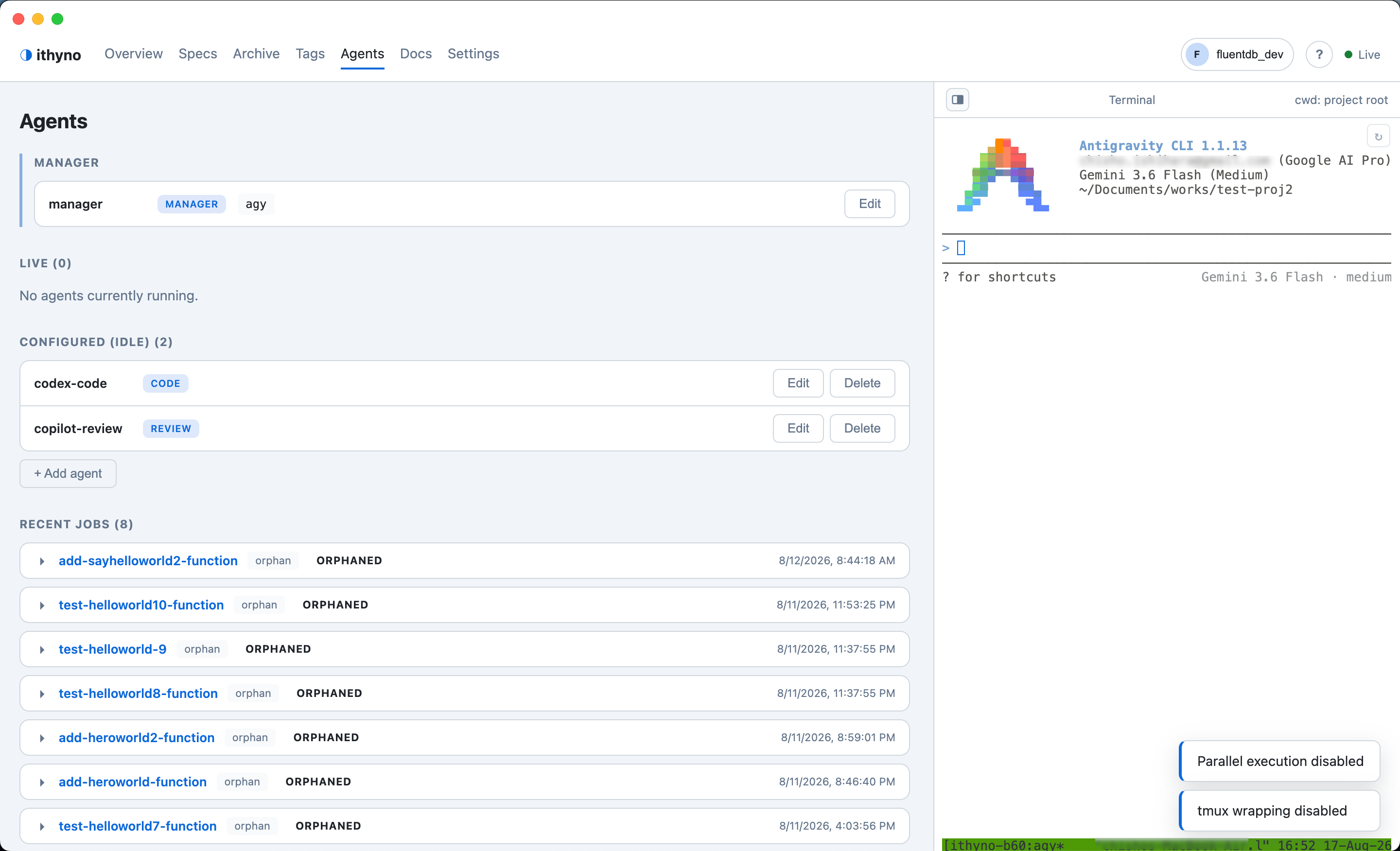
- Open Agents and confirm that the Manager and all workers appear.
- Resolve any
agents.yamlparse error shown at the top of the page. - Return to Settings → Prerequisites and confirm that every command is installed and its skills are current.
- Enable Settings → Execution → Parallel execution if you want isolated
.worktrees/<change-id>/worktrees. This is recommended for dispatch and is required for safely working on multiple changes at once.
maxParallel limits concurrently active changes. It does not run code, review,
and verify simultaneously for the same change.
4. Dispatch from the dashboard
- Create a change with + New Change, or open an existing proposed change.
- Review its proposal, requirements, design, and task list.
- Select Start on the change card or Change Detail page.
- Confirm the command in the Dispatch this change dialog.
- Keep the Manager terminal running and monitor the card or Agents page.
The Manager selects the code worker first. A passing code result advances to
review, and a passing review advances to verify. Rework findings return to
the code stage. Questions that require a decision appear as Needs human.
5. Dispatch from the Manager terminal
You can send the same command directly in the Manager terminal. Use the copy button on a change card to copy its change ID, then paste the ID after the dispatch command shown below.
/ithy-opsx:dispatch add-health-endpoint
ithy-opsx-dispatch add-health-endpoint
To run several independent changes concurrently, use dispatch-multi after all change proposals exist:
/ithy-opsx:dispatch-multi change-one change-two change-three
ithy-opsx-dispatch-multi change-one change-two change-three
Dispatch-multi fans out changes before waiting, but each individual change
still follows code → review → verify in order.
Troubleshooting
| Symptom | Check |
|---|---|
| Worker command is not found | Install the CLI and restart ithyno so the Manager inherits the updated PATH. |
| Worker does not recognize the workflow | Use Settings → Prerequisites → Manage skills for that specific CLI. |
review returned no artifact |
Confirm the review worker has ithyno skills and can write the exact review.md artifact path supplied by dispatch. |
| Start opens a dialog but nothing runs | Confirm the Manager terminal is open and the configured Manager CLI is authenticated. |
| Work runs in the main tree | Enable Parallel execution before dispatching. |
| A second change does not start | Check maxParallel, the Agents page, and any project lock held by a non-parallel run. |
See Multi-agent execution flow for the stage
lifecycle and Agent configuration (agents.yaml)
for additional CLI-specific configuration. Persistent Manager terminals and
live-shell worker messaging are covered separately in
Advanced: tmux and agmsg.